
Nectar#2-Enabling Federated Single Sign on for Cloud P6 EPPM
- Ganapathi Subramanian
- Jan 28, 2019
- 7 min read
“A Person who never made any mistake never tried anything new” – This is so obvious and true based my experience and I am sure that everyone might have realized in their professional journey too.
In one of my last Cloud based EPPM Implementation, I got a challenging task of “Enabling Federated Sign on for P6 EPPM”. I had a rough start initially, where the entire piece of integration seemed massive due to its complexity and cloud based technology. But rough sail turned out smooth, once the insight on working functionality base was imbibed clear. So here I will share the details as much as I know which can help most of you and I am sure this will add to your learning bucket.
I have made sure, to elaborate all the basic jargons and process involved so that even a P6 newbie can find it easy to understand and implement the same.
Federated Single Sign-on:
Federated Identity is the Process or means of linking user’s electronic identity and attributes stored across different identity management system. Single sign is a sub set of Federated identity which allows users to access multiple applications hosted by Organization. This will be the common integration that will be required and implemented by most of the customers, due its technical architecture, workability, simplicity in handling and it’s a boon for IT teams to maintain user base at one system. Let’s drill down a bit and understand how this actually works.
As we all Know Primavera EPPM supports 3 different types of authentication as follows:
User Name Token Profile - User Name Token Profile describes how a web service client application can supply a user name and an optional password in the message request that the web service server can use to authenticate the requestor's identity.
HTTP Over Cookies: When this authentication is used, P6 EPPM will send the authentication request, and this request will include the cookie in the header .Upon receiving the request, this cookie will be read by the web-logic server and user session will be established.
SAML: Security Assertion Mark up Language, is a open standard that helps in standardized communication between Service Provider ( SP) and Identity Provider( SP). In other words SAML simplifies the federated authentication and authorization Process.
We have introduced two jargon's here - 1.Service Provider(SP) and 2.Identity Service Provider ( IDp) , for better insight let us drill down a bit and understand what those means
Service Provider (SP) : In Simple words , SP is the entity that provides web services. And it is important to note that SP will always rely on a trusted IDP for authentication and authorization Purpose. Example, if you have hosted Oracle EPPM over cloud, then “Oracle Cloud” will be the Service provider (SP).
Identity Provider ( IDP): This is service or mechanism that authenticates users by means of Security token . Oracle EPPM application support SAML 2.0 which will be used for authentication purpose. In other words IDP performs authentication validation upon receiving the authentication request from SP and passes the authorization back to SP in form of SAML assertion. – Microsoft Active Directory, Microsoft Azure are some of the examples of IDP.
In my last implementation, Customer was using “Microsoft Azure” as Identity Provider (IDp).
Process Orchestration of how P6 EPPM when SSO enabled works

Pre requisites that needs to be taken care for SSO integration
Make sure P6 EPPM is installed with most recent version (15.2.0.0 and above) –SAML integration is supported only from 15.2 onward.
Get the details of IDP software being used by customer – Example Microsoft Azure.
Version number of IDP , and also check whether that is SAML 2.0 compliant.
It is necessary to create user information in the “Cloud Admin utility” only – This is establish account linking, attributes and basic information identity for SP.
Note – All the user creation will have to be handled inside Cloud administration and when Federated SSO is enabled, password context will not be handled by Cloud administration as the user authentication request will be intercepted by SSO.
User name created in “P6 Cloud Administration” should exactly match with IDP maintained user name – This is the key step, since the authentication request will be passed to IDP for validation. Example in Azure if you have user named “Roger Lacil” then in P6 the same user name should be maintained.
Confirm with your customer if they use a Single or multiple IDP’s. Generally most of the organization use only single instance of IDP, where subset of sites/repository will be maintained inside that IDP.
Steps involved in SSO Integration:
1. Meta data Population: Service Provider metadata is primary mandate that needs to be extracted from EPPM. This metadata will be imbibed by IDP.
SP metadata will be in form of XML which has multiple attributes like digital certificate, endpoint security URL, encryption type, and other related parameter.
To extract the SP meta data , type the following URL in web browser
Replace the customer name with specifics, every cloud customer will have a unique customer name reference, so assume if company called “GGCCO” has Cloud hosted P6 EPPM instance then the URL will be like:
https://GGCCO-primavera-idm.oracleindustry.com/oamfed/SP/metadata
Meta Data Extract Sample:

During the IDP SAML assertion process, the signed certificate embedded in the SP Meta data will be utilized. Hence it is important to have this handy and ready to be passed to IDP administrator.
Please Note- Use the "save as" option in web browser to save this xml to your local drive.
2. Enable the mixed mode authentication for SAML configuration – This Process will be handled by Oracle hosting team once then Service request (SR) is placed. However it is important to know significance of the same
Mixed mode authentication in SSO works in 2 separate channel, where one set of user authentication will be done by IDP and other by SP itself.
Assume we have X users in EPPM, which is combination your internal organization employees, bidders, contractors, external consultants etc. If a mixed mode is enabled then internal users will be authenticated against IDP (Azure), and remaining users will be authenticated by SP itself –Here SP will be Oracle cloud admin.
3. Creation of SP profile within the IDP or in other words, using the SP meta data file extracted (in Point 1) , SP profile needs to be created in Microsoft Azure(IDP) – This is a detailed Process and can be handled specific by Azure administrators
In our last implementation we jointly did the part, so I can share some insight in separate blog- But assume if you Azure admin, then this configuration is matter of 5-10 mins.
And once the SP profile is created inside IDP, then same can be extracted via XML and kept ready. This will be needed for further configuration in SSO.
4. In IDP side, Kindly check with your administrator if all the users who has license for P6 EPPM has respective application access granted.
This is easy step which IDP administrator can configure inside Azure, There are many articles available in Microsoft forums, kindly refer one such for details:
In our implementation we followed this guide to enable application access for users. If this step is not followed then upon SSO enablement, users will get error named “You do not have sufficient privilege to access the application – Please contact the administrator”
5. Last step would be confirm Oracle hosting team via SR and forward them the IDP Meta data for SSO enablement.
Post SSO enablement:
After successful SSO enablement, when we log in to P6 EPPM URL, we will be redirected to Microsoft page as seen below

In the above screen, user need to supply their AD credentials to access the Primavera application.
How the users who are not part of IDP will access the application?
There are 2 different context URLS that can be used as follows :
Assume if your company is GGCCO, then you will be using 2 URL's as applicable
1. https://GGCCO-p6.oracleindustry.com – This will take the users to Microsoft page or in other words after SSO interception this is the login page that users will be prompted to key in credentials.
2. https://GGCCO-p6.oracleindustry.com/partner - This will allow the users to get authenticated via Cloud SP. And upon accessing the this URL , P6 EPPM page directly open without showing up Microsoft page.
In typical setup , employees or users maintained in IDP will use default P6 URL, while other user groups (like bidders , consultants , contractors ) continue to use the P6 application via "/partner" URL.

There is a different configuration needed for P6 Professional after SSO enablement- which will be covered in my next blog in coming days.
How are password Expiry and notifications handled in Cloud? (for Mixed Mode users) when SSO is enabled
In Cloud administration Portal, there is a specific setting for password policy configuration. Organizations can choose to use the default policy mapping or they can define a new set of Policy as per business need.
To change the password policy , navigate to cloud admin Portal -> click Password policy management and update values as required.

Based on the above settings (looking at OCI Policy rule) it is evident that every 150 days once password warning message will be triggered and at 180th day password will get expire users do not react to password warnings .
Here comes a big catch, in IDP (Microsoft Azure), already there will be a password policy rule which will be enabled - Most Org;s maintain different threshold levels per standards. SSO enabled users who has name value pair in IDP, will not be prompted for password expiry notification from Oracle Cloud admin. Only the users who are not part of IDP will be applicable and fall under this policy config.
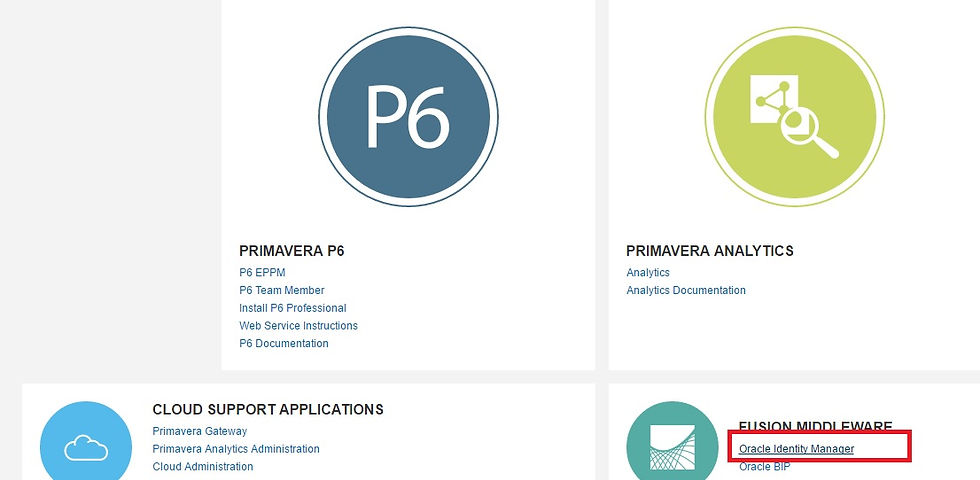
Apparently if this doesn't work( where still if notifications are triggered to IDP users) , then we need to disable password notification setting from Oracle Identity Manager (OIM) . Follow the steps to disable-
Kindly use the "Super User" login to perform the following tasks.
Navigate to to OIM console ( This can be found in the Oracle Cloud admin Page)
Click Advanced
Within System Management, click Search Notification Templates
search for Password*. Note, Password Expiration and Warning tasks will be displayed
Click on the Password Warning task and press the Disable button.
Click on the Password Expiration task and press the Disable button.
Following are the detailed steps that will be performed at back end - Well, you might be on safe side if you are on Cloud since all these steps will be performed by hosting team. But is important to understand the core of what is being done, enumerating the details:
Configuring the SSO to intercept the request
Configuration of Weblogic to enable the "Weblogic Plugin"
Setting up of required parameters in web server to either use web logic plugin enabled in previous step or IIS server.
Configuration of adminpv.cmd. This is keyconfig, where we need to change the "Authentication Type" to "SAML" , populate sign sign on attributes setting up username header key etc.
Configuration of P6 Pro to use cloud connect driver with Single sign on.
Each step detailed above has own specifics for configuration which I am not covering in the blog. However if you need insight or details I am happy to guide. Please feel free to reach me through mail.
Happy Sharing!
Ganapathi Subramanian
Oracle Certified Implementation Specialist
Email : bharath.sub87@gmail.com


Comments